
Record with a Bluetooth GNSS receiver
An external GNSS receiver is often more accurate than the satellite receiver built into a phone, and it lets devices without one, such as Wi-Fi-only tablets, record tracks. Geo Tracker can connect to a receiver over Bluetooth and record with its position.
Compatible receivers
Section titled “Compatible receivers”Geo Tracker reads the standard NMEA data that most GNSS receivers send.
- Android supports both Classic Bluetooth (serial port profile) and Bluetooth Low Energy (BLE) receivers.
- iOS supports BLE receivers that send NMEA over a serial-style BLE service. Classic Bluetooth receivers can’t connect to iOS apps.
iPhone-certified (MFi) receivers also work without connecting them in Geo Tracker: they pass their position to iOS, so keep the source set to This device. Geo Tracker then gets less detail than over its own BLE connection, for example no satellite count.
Connect a receiver
Section titled “Connect a receiver”- Turn the receiver on and keep it close to your phone.
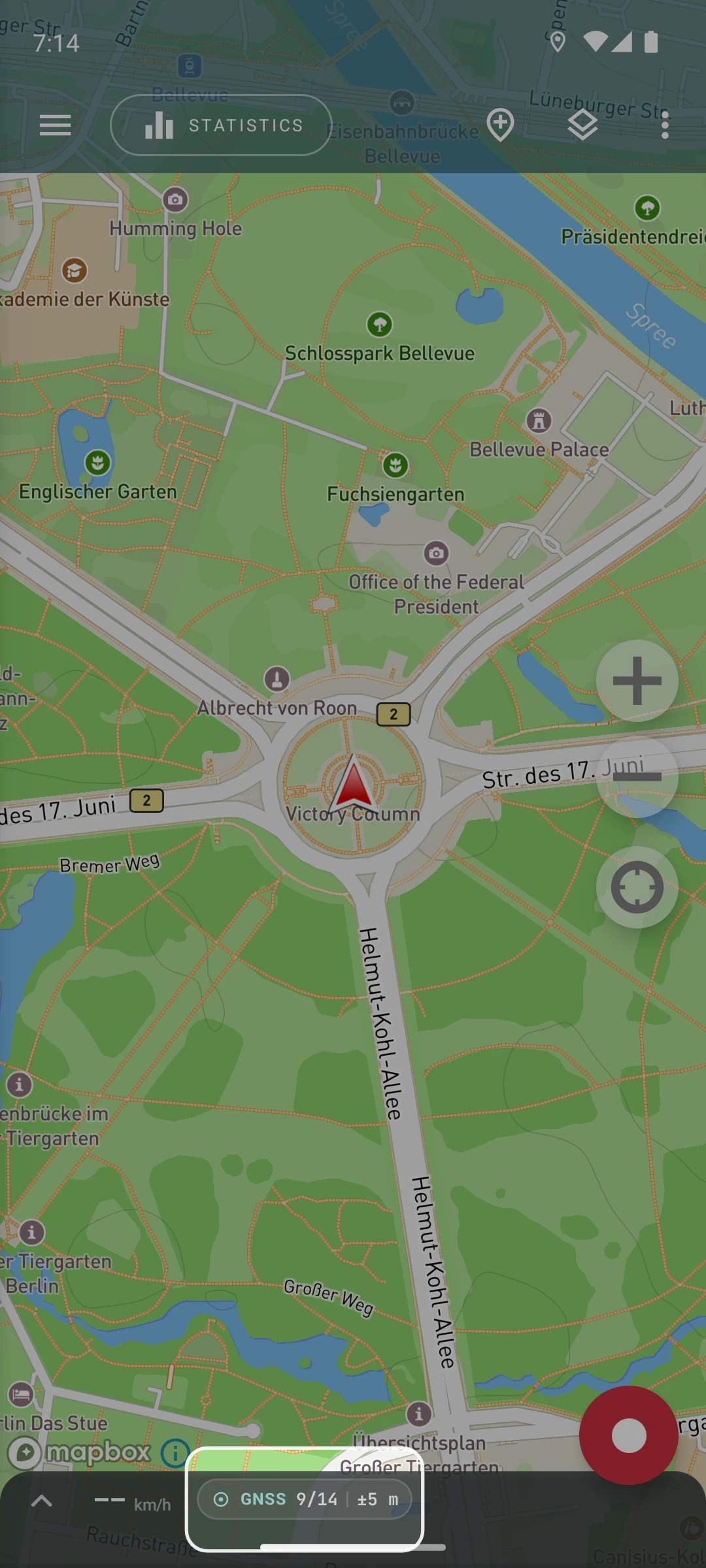
- In Geo Tracker, tap the location status (for example GNSS or Fix) in the panel at the bottom of the map. The location popover opens.
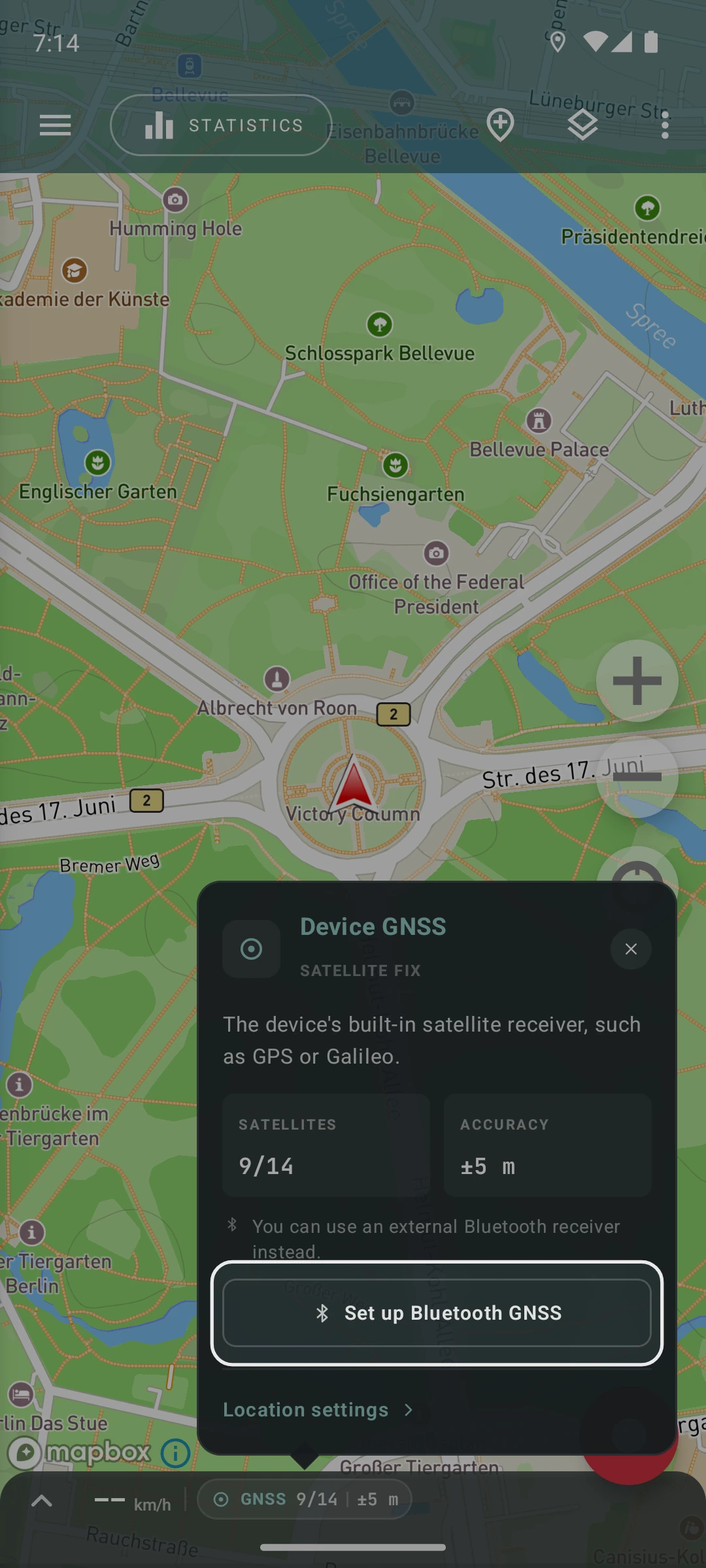
- Tap Set up Bluetooth GNSS.
- Put the receiver in pairing mode if it needs one.
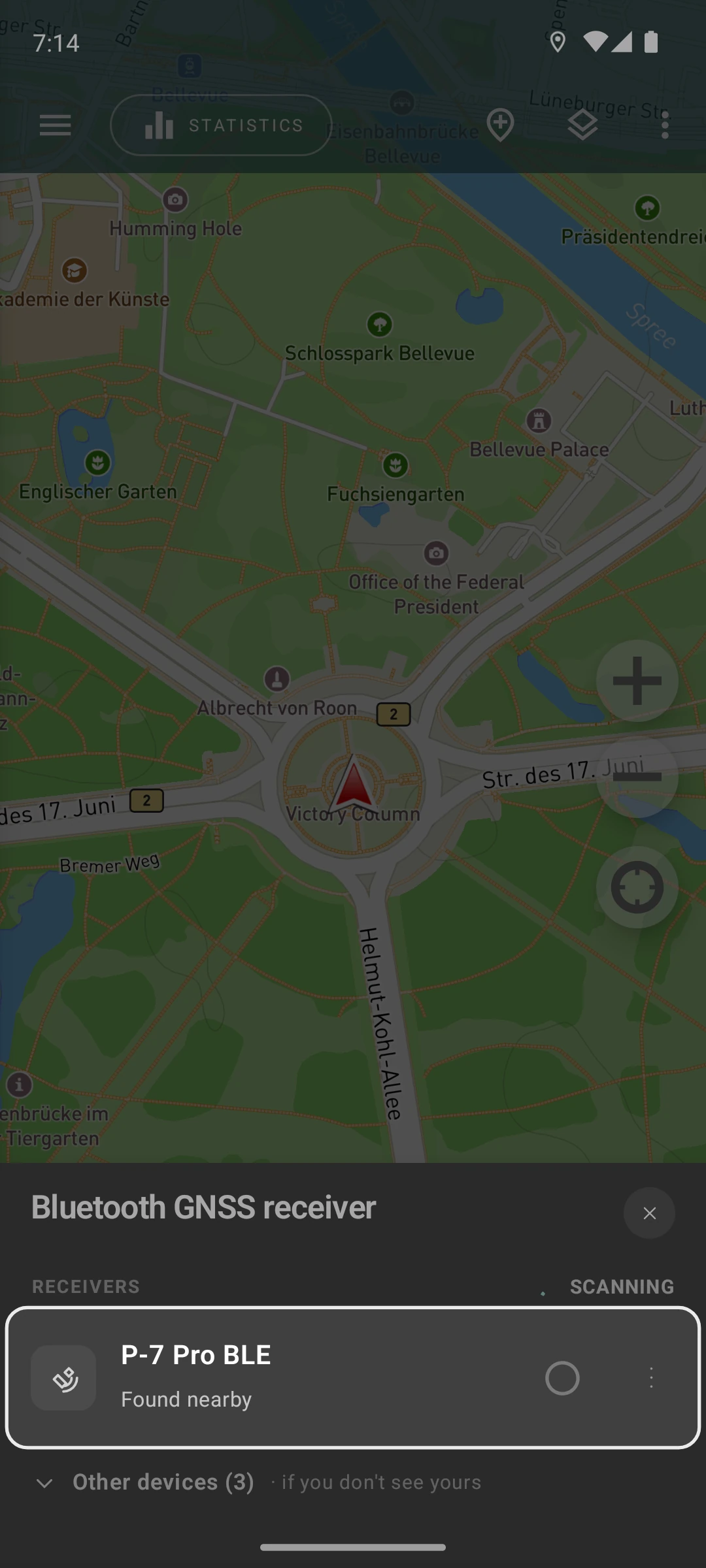
- Select your receiver in the list. Pairing happens right there, and you don’t have to pair it in the system Bluetooth settings first.
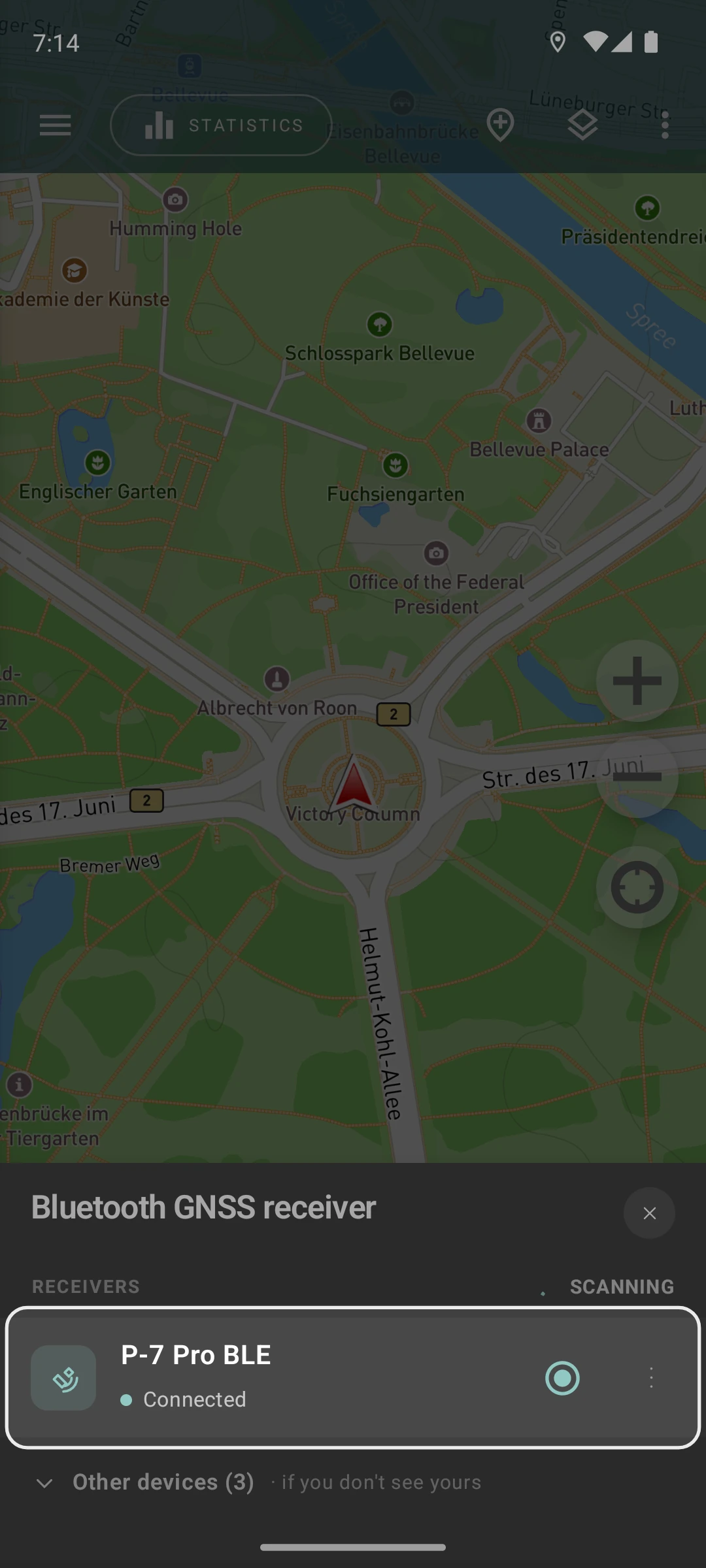
Geo Tracker shows Connecting… until the receiver sends its first position, then Connected. After that, it reconnects to the receiver on its own whenever both are switched on.
You can also connect a receiver in Settings → Location: set Location source to Auto or Bluetooth receiver only, then tap Bluetooth GNSS device. The setting is hidden while the source is This device.
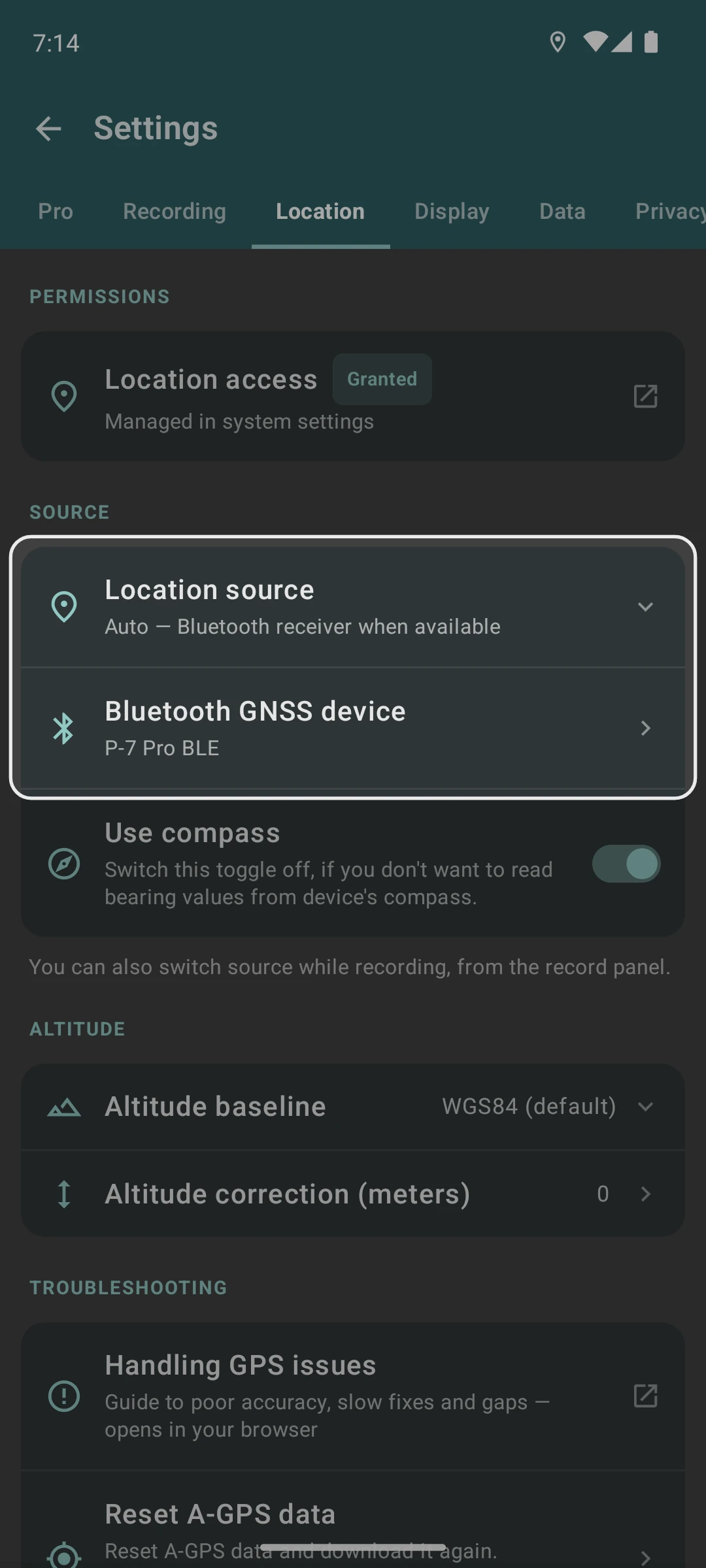
If your receiver isn’t listed under Receivers, look under Other devices. These devices don’t advertise a service Geo Tracker recognizes, so they probably can’t send positions, but you can still try one.
Geo Tracker asks for permission to use Bluetooth the first time. If you denied it, allow Bluetooth access (on Android, Nearby devices) for Geo Tracker in the system settings.
To stop using a receiver, open the receiver list again (from the receiver’s row in the location popover, or from Bluetooth GNSS device in the settings), open the receiver’s menu and choose Forget this receiver. The phone may keep its Bluetooth pairing; remove that in the system Bluetooth settings if you need to.
Choose the location source
Section titled “Choose the location source”The Location source setting in Settings → Location decides where positions come from:
- Auto — Bluetooth receiver when available: uses the receiver while it’s connected, and the phone’s own location otherwise.
- This device: always uses the phone’s own location. A connected receiver is ignored.
- Bluetooth receiver only: uses only the receiver. If it disconnects or has no position, nothing is recorded until it’s back. The phone’s location is never used as a fallback.
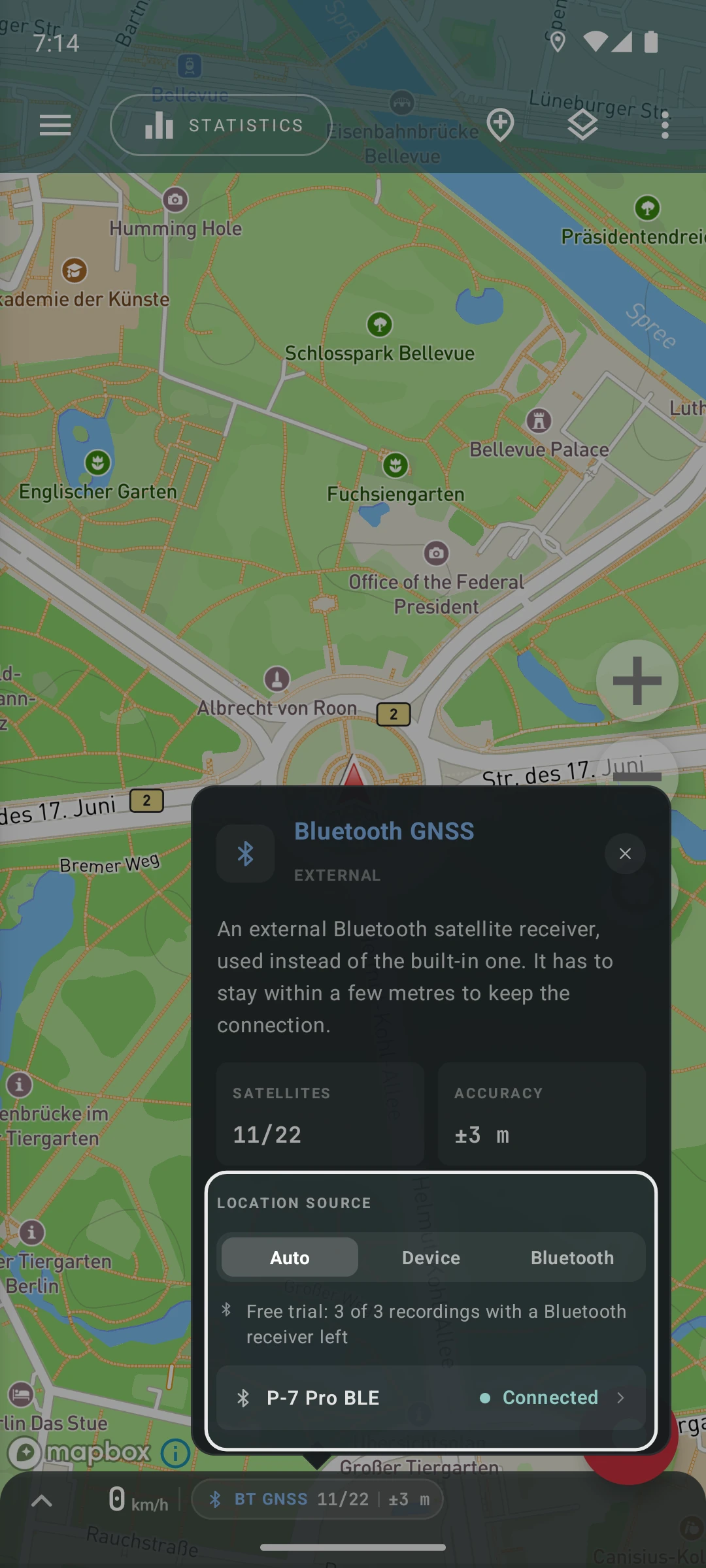
You can also switch the source during a recording: open the location popover from the panel at the bottom of the map, and under Location source pick Auto, Device or Bluetooth. The popover also shows the receiver’s state, fix and satellites.
If the receiver doesn’t work
Section titled “If the receiver doesn’t work”- Couldn’t connect: the receiver didn’t answer. It may be switched off, out of range, or already connected to another app. Close the other app or disconnect it there, then choose Retry.
- Receiver offline: the connection was lost. Bluetooth reaches only a few meters, so keep the receiver close to the phone, for example in the same pocket or bag.
- Bluetooth is off: turn Bluetooth on. Geo Tracker reconnects once both Bluetooth and the receiver are on.
- No usable location: the receiver is connected but hasn’t found its position yet. Give it time outdoors with a clear view of the sky.
- Weak signal: the receiver’s positions are too imprecise to record. Wait for a better signal. On Android, you can also relax the GPS accuracy limit of your recording profile.
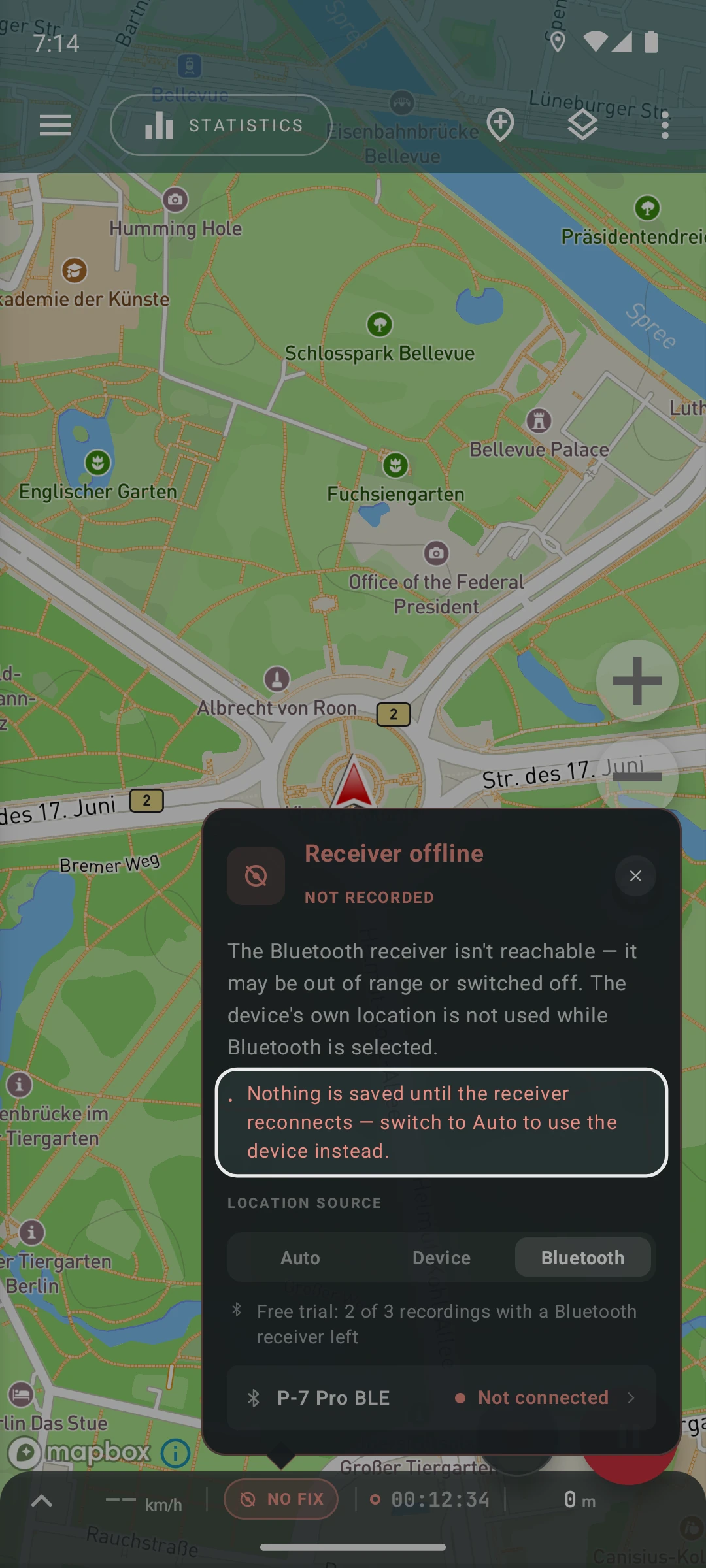
With Bluetooth receiver only, nothing is recorded while any of these problems lasts. Switch to Auto if you’d rather fall back to the phone’s location.
Pro subscription
Section titled “Pro subscription”Connecting a receiver and checking its position is free. Recording tracks with a receiver is part of the Pro subscription, and you can try it with a few free recordings first. The location popover shows how many free recordings are left.
When the free recordings are used up, Geo Tracker offers the Pro subscription before a new recording starts. You can also choose Use device location to record with the phone instead. A recording that has already started is never interrupted.