
Set up a Vivo phone
You may need to make additional system adjustments for Vivo devices to record tracks with Geo Tracker in the background without interruptions.
1. Disable Battery Saver
Section titled “1. Disable Battery Saver”Ensure all power-saving modes are switched off:
Open System settings → Battery → Battery saver and switch the “Use battery saver” toggle OFF.


2. Unrestrict background power usage
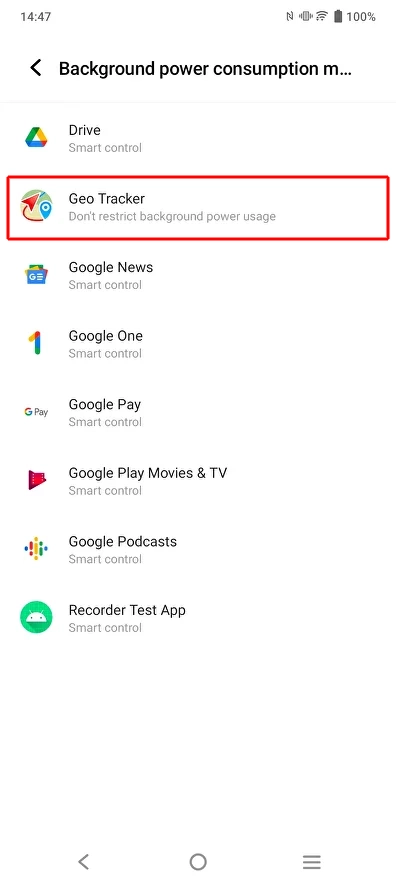
Section titled “2. Unrestrict background power usage”Open System settings > Battery > Background power consumption management > Geo Tracker and select “Don’t restrict background power usage”

Check the previous screen—Geo Tracker should appear here.
3. Lock Geo Tracker
Section titled “3. Lock Geo Tracker”To do this, open the app and minimize it by tapping the central button.
Next, go to the app switcher by the bottom-right “sandwich” button. Tap the small arrow near the “Geo Tracker” title and select the “Lockdown” option.

Check the lock icon—it will appear near the “Geo Tracker” title.

More information can be found at dontkillmyapp.com/vivo.