
Route guidance
Enable route guidance
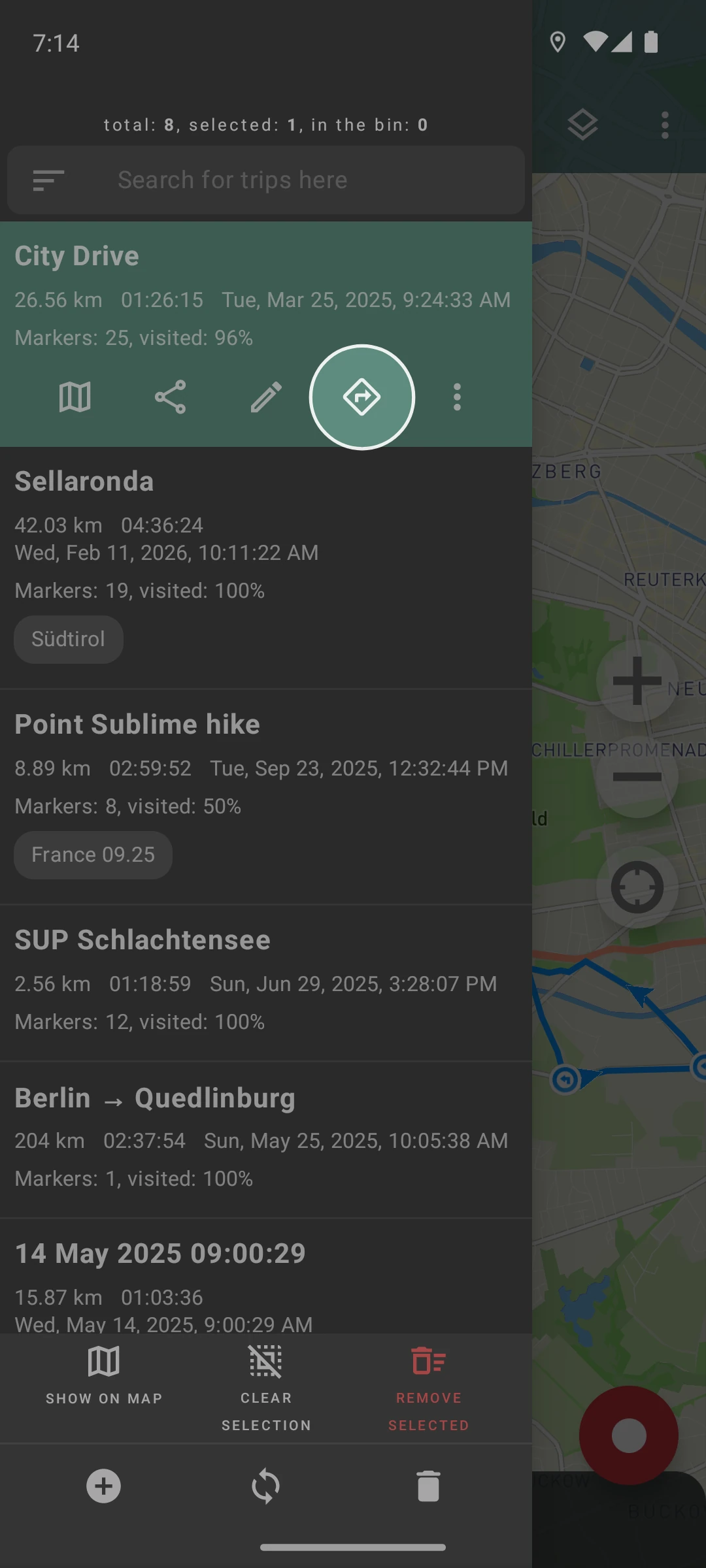
Section titled “Enable route guidance”To enable route guidance:
- Open the track list,
- Select the track to guide over,
- Tap the
 “Guidance” icon.
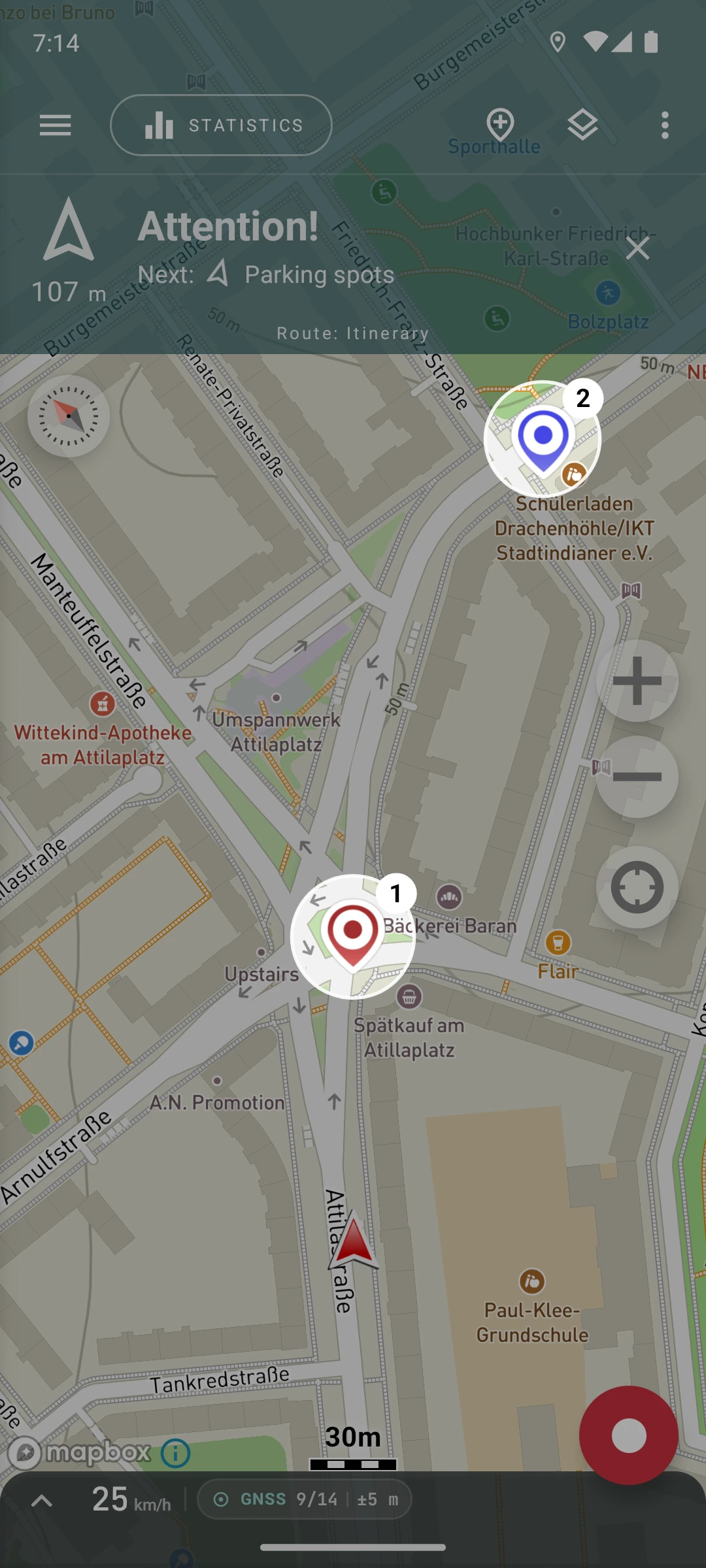
At this moment, Geo Tracker will automatically create all necessary maneuvers and start displaying route prompts.
Guide in reverse direction
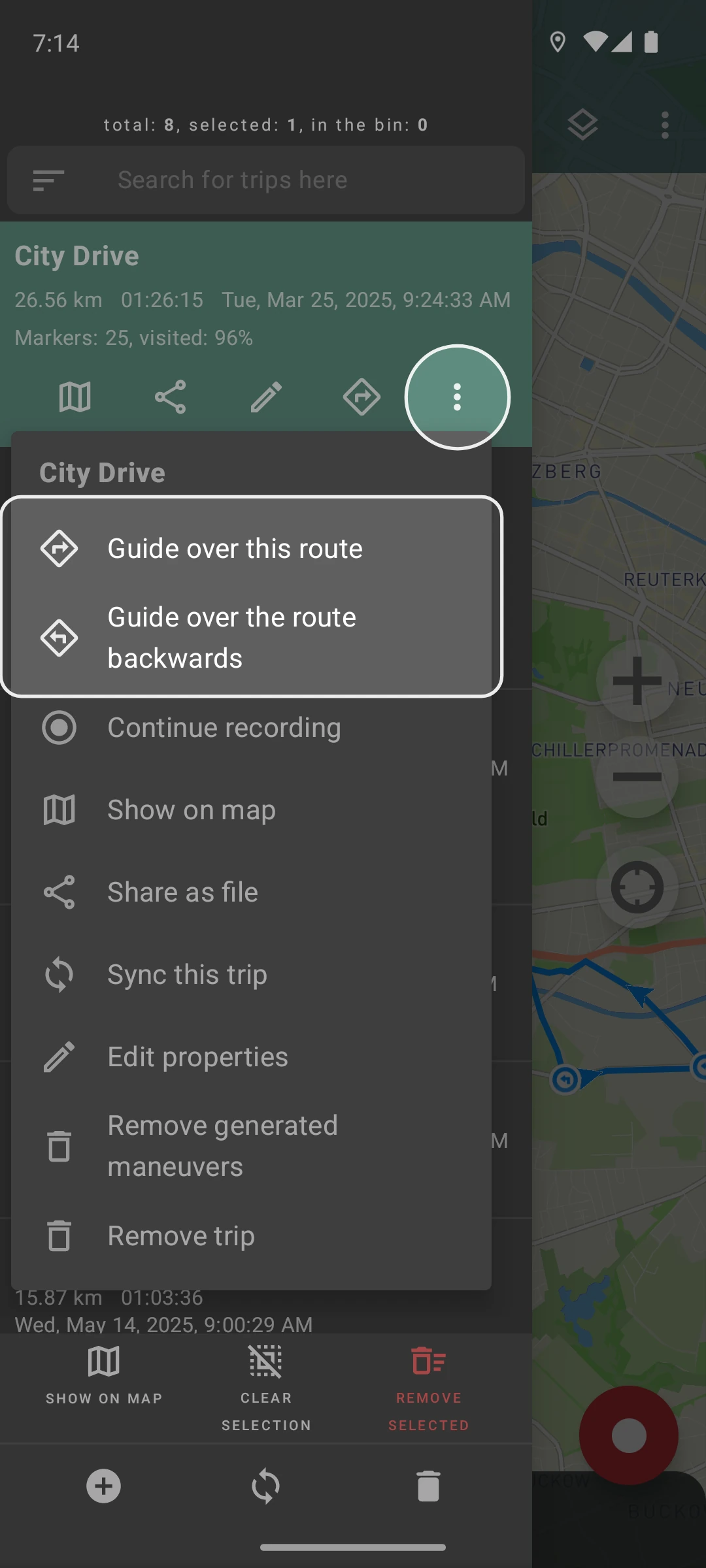
Section titled “Guide in reverse direction”You can use one track for movement in both directions. To navigate in reverse direction:
- Open the track list,
- Tap the ”⋮” (three dots) on the required track,
- Select the navigation direction.
If you choose “Guide backwards,” the navigation will be conducted from the track’s endpoint back to the starting point.
Stop guidance
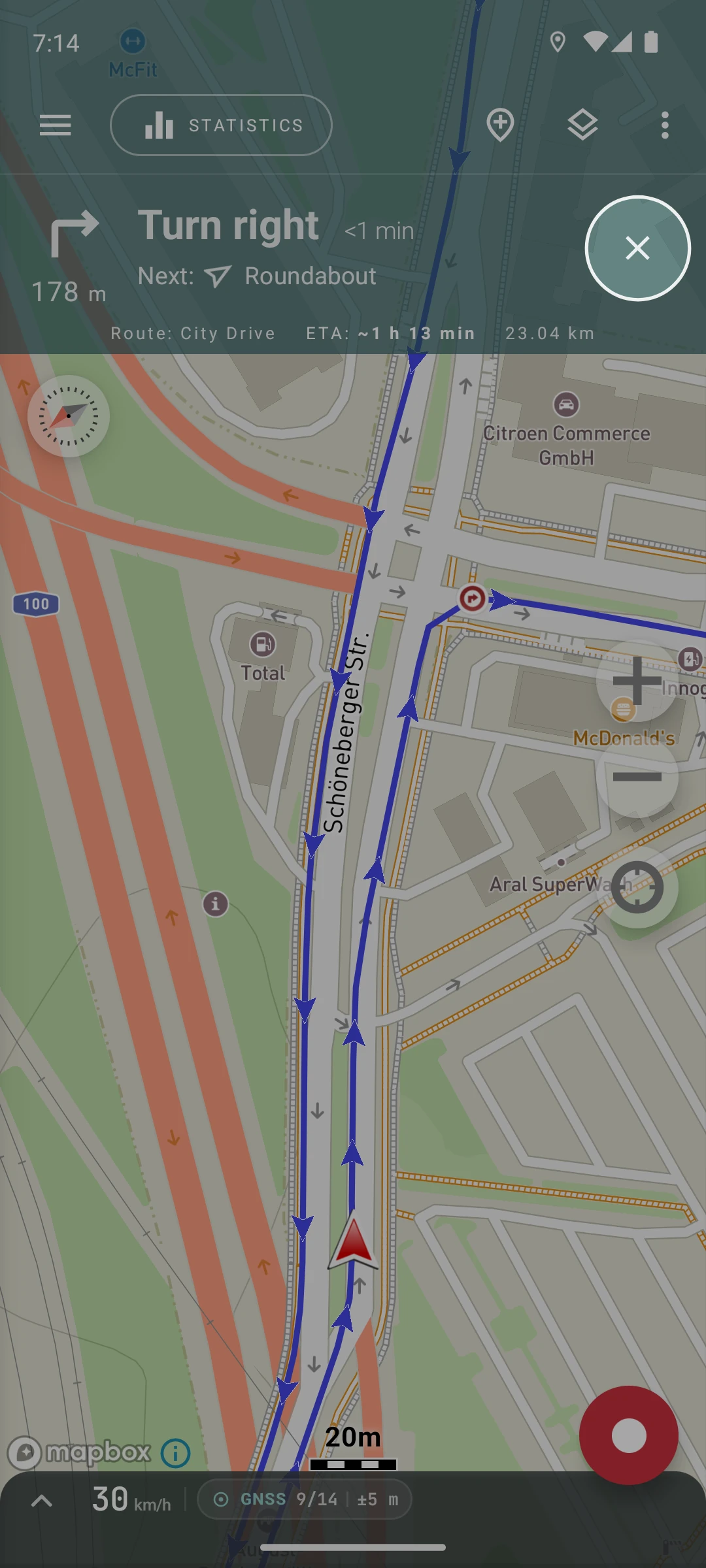
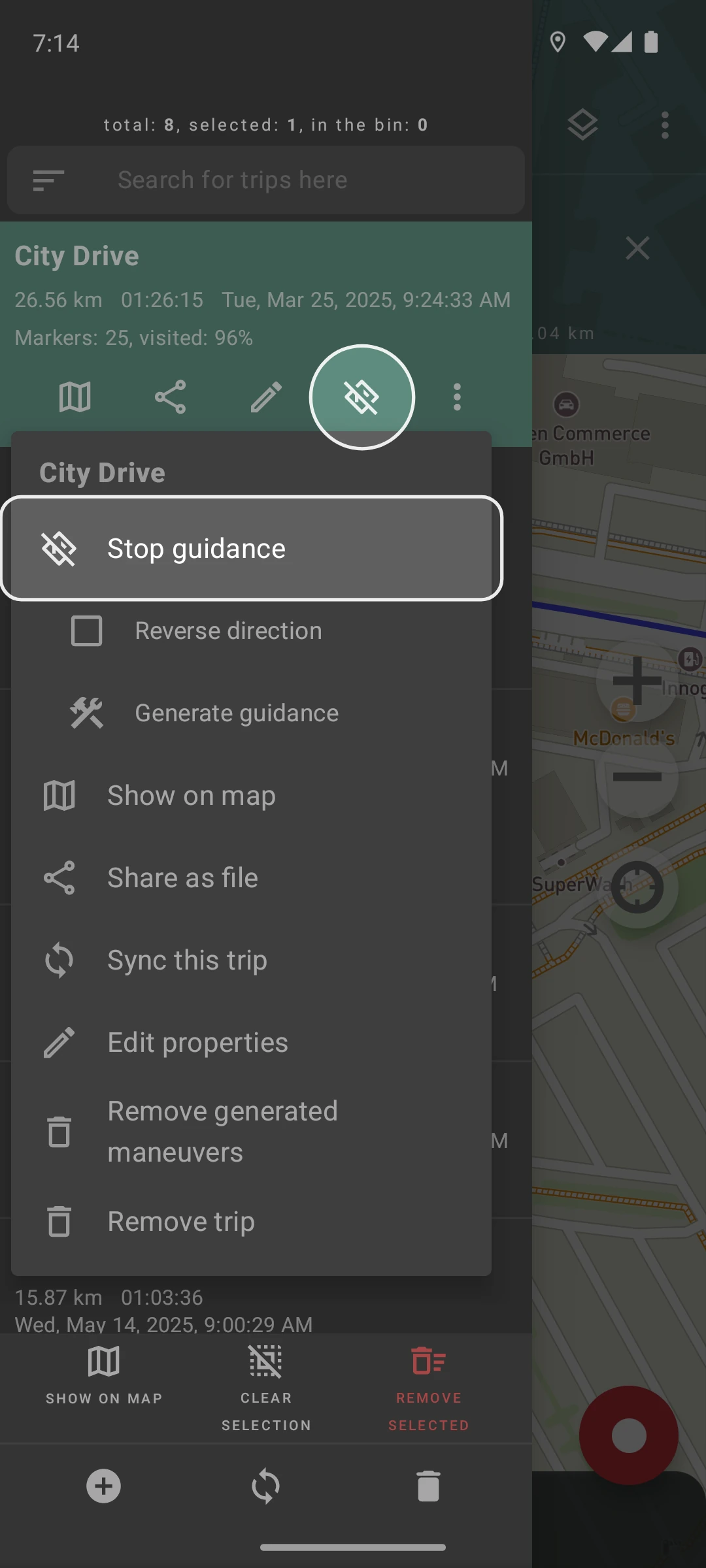
Section titled “Stop guidance”You can stop guidance at any time in three ways:
- Tap the "
 " button in the navigation prompt on the main screen,
 - Tap the “Stop guidance” button on the selected track,
- Tap the ”⋮” menu of the route and then select “Stop guidance.”
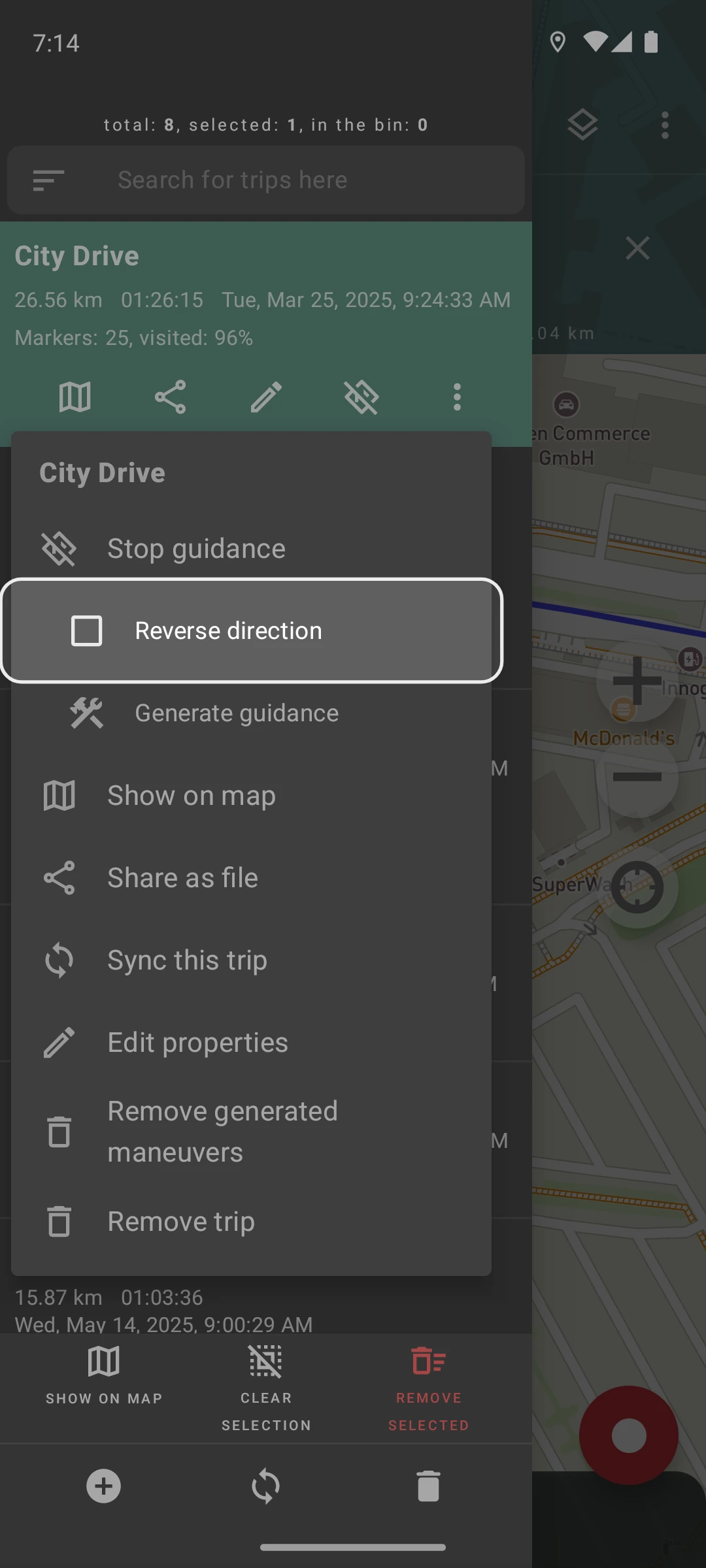
Reverse direction while moving
Section titled “Reverse direction while moving”You can start guidance in reverse direction while moving. To do this:
- Tap the ”⋮” on the required track,
- Check the
 “Reverse direction” checkbox.
In this case, guidance will be conducted from the current point back to the track’s starting point.
Regenerate guidance
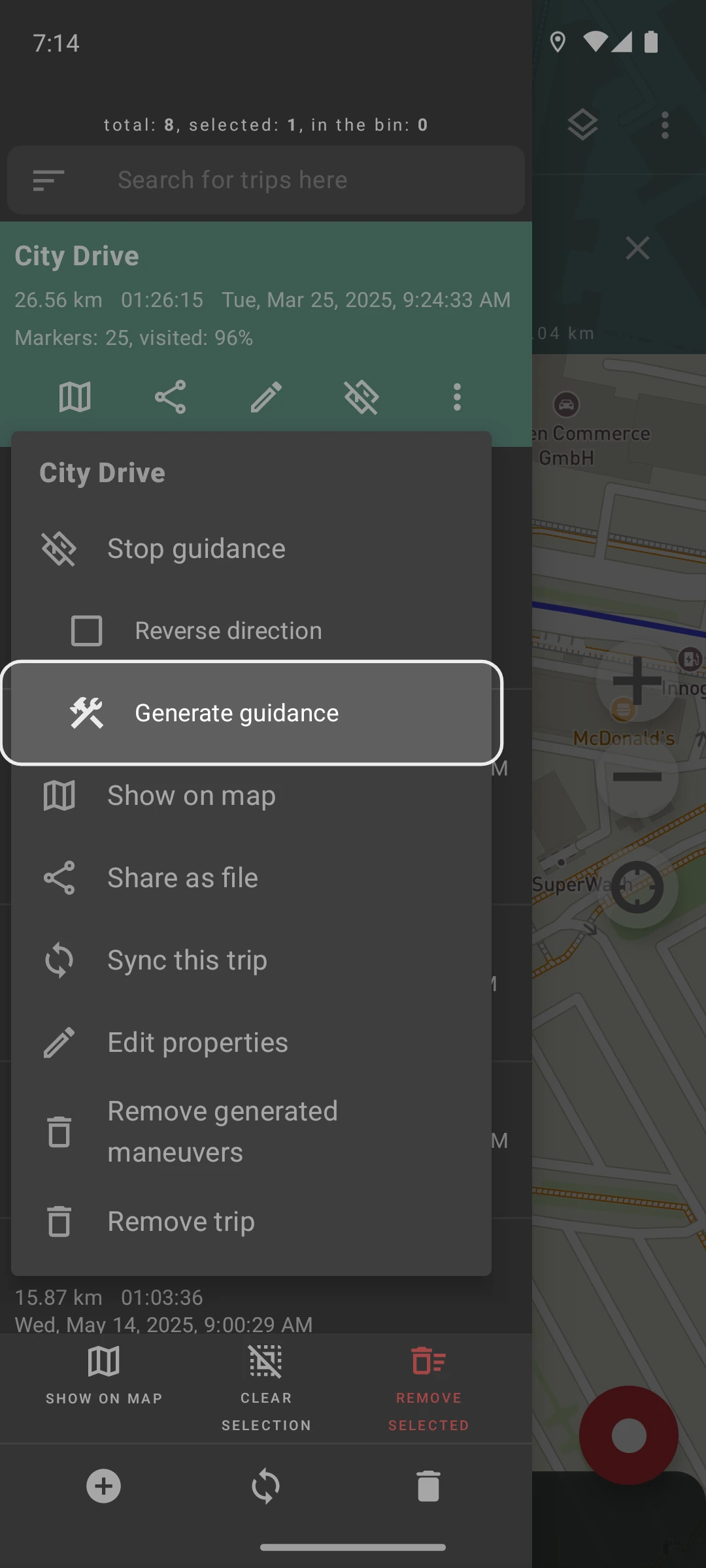
Section titled “Regenerate guidance”If you think that Geo Tracker has incorrectly recognized maneuvers on the track, and you want to regenerate guidance for the route:
- Tap the ”⋮” on the route,
- Select “Generate guidance”.
In this case, the maneuver recognition algorithm will regenerate all necessary points on your route.
Add maneuvers manually
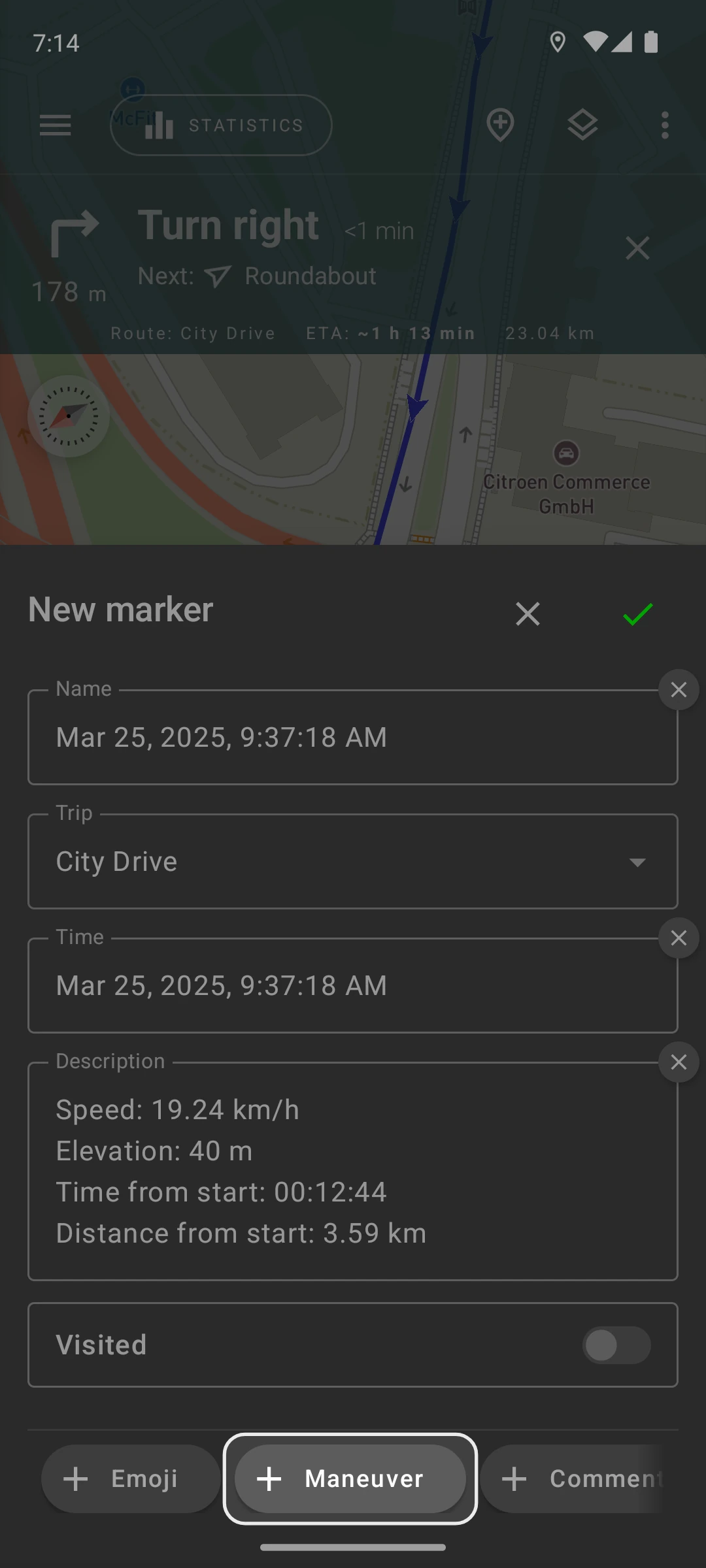
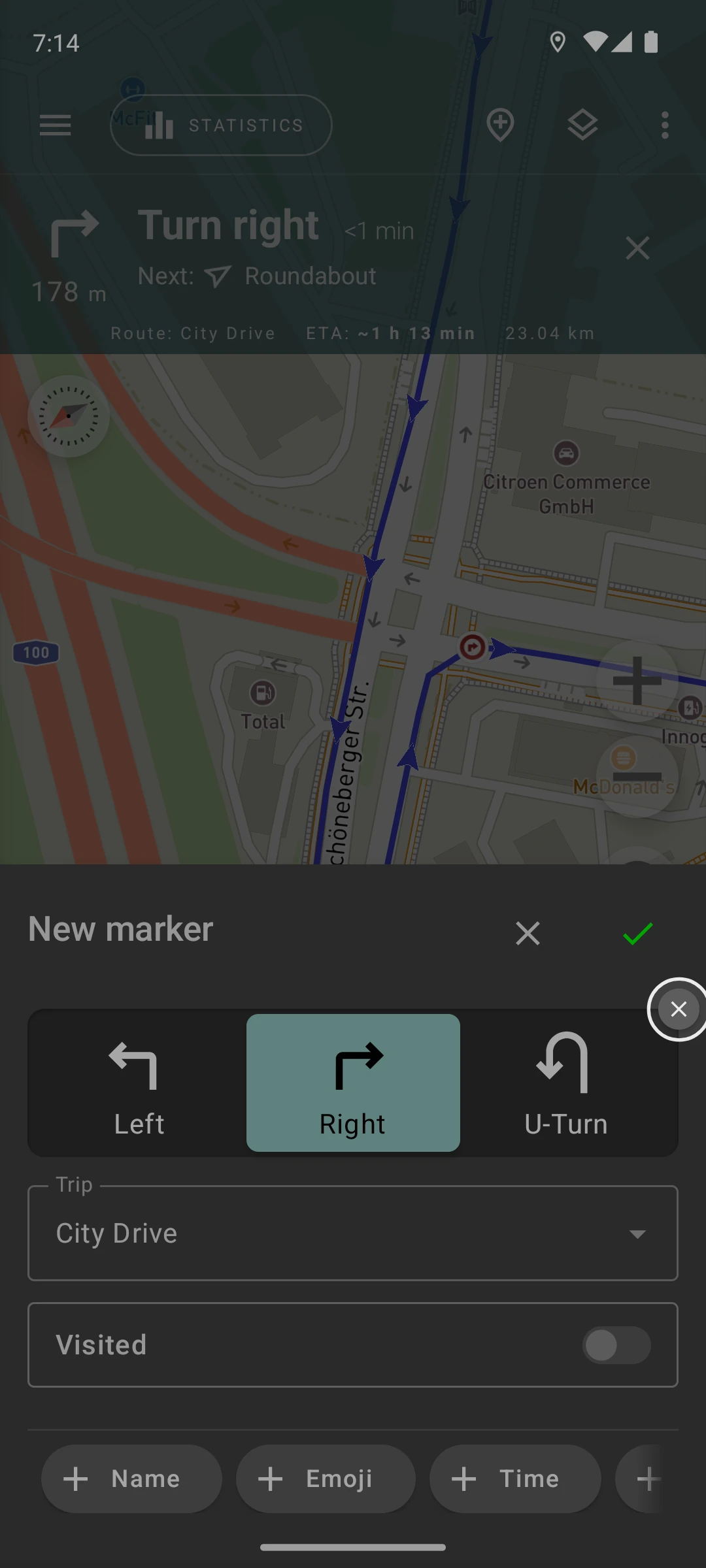
Section titled “Add maneuvers manually”If you notice that some maneuvers are missing in the tracker, you can add maneuvers manually. To do this:
- Start adding a marker to the track in the standard way,
- In the marker information dialog, add the “Maneuver” field,
- You can delete all other fields as they will not affect route guidance,
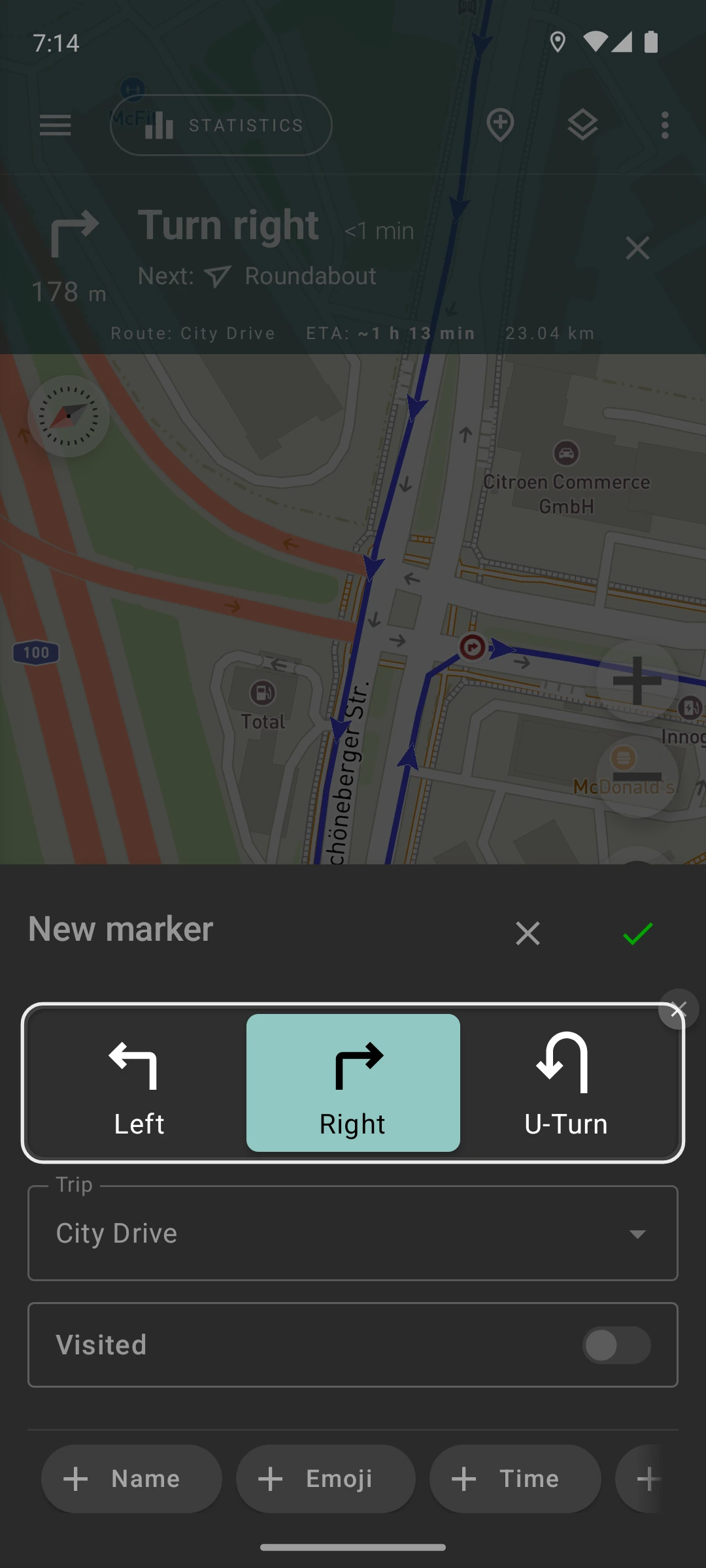
- In the newly appeared “Maneuver” field, select the direction of the maneuver,
- Save the marker.
Now, during navigation, your maneuver will also be displayed.
Maneuver names
Section titled “Maneuver names”If the name is left blank in a manually added maneuver, the selected maneuver name will be used:
- Turn right
- Turn left
- Make a U-turn
If you manually specify the marker name, the specified maneuver name will be displayed in the prompt.
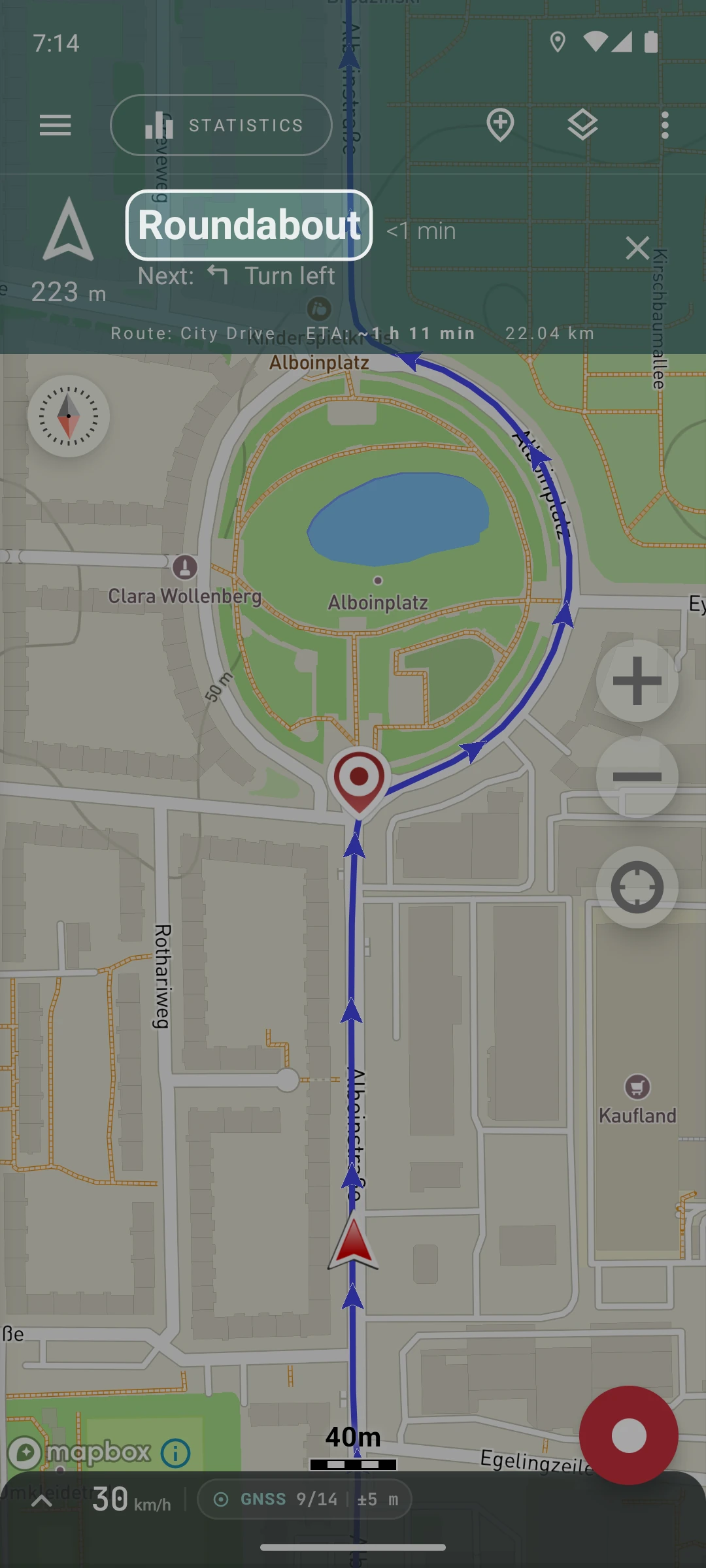
Please note that Geo Tracker cannot correctly recognize roundabouts. Therefore, if your track includes a roundabout, remember to manually add a navigation marker.
Delete a maneuver
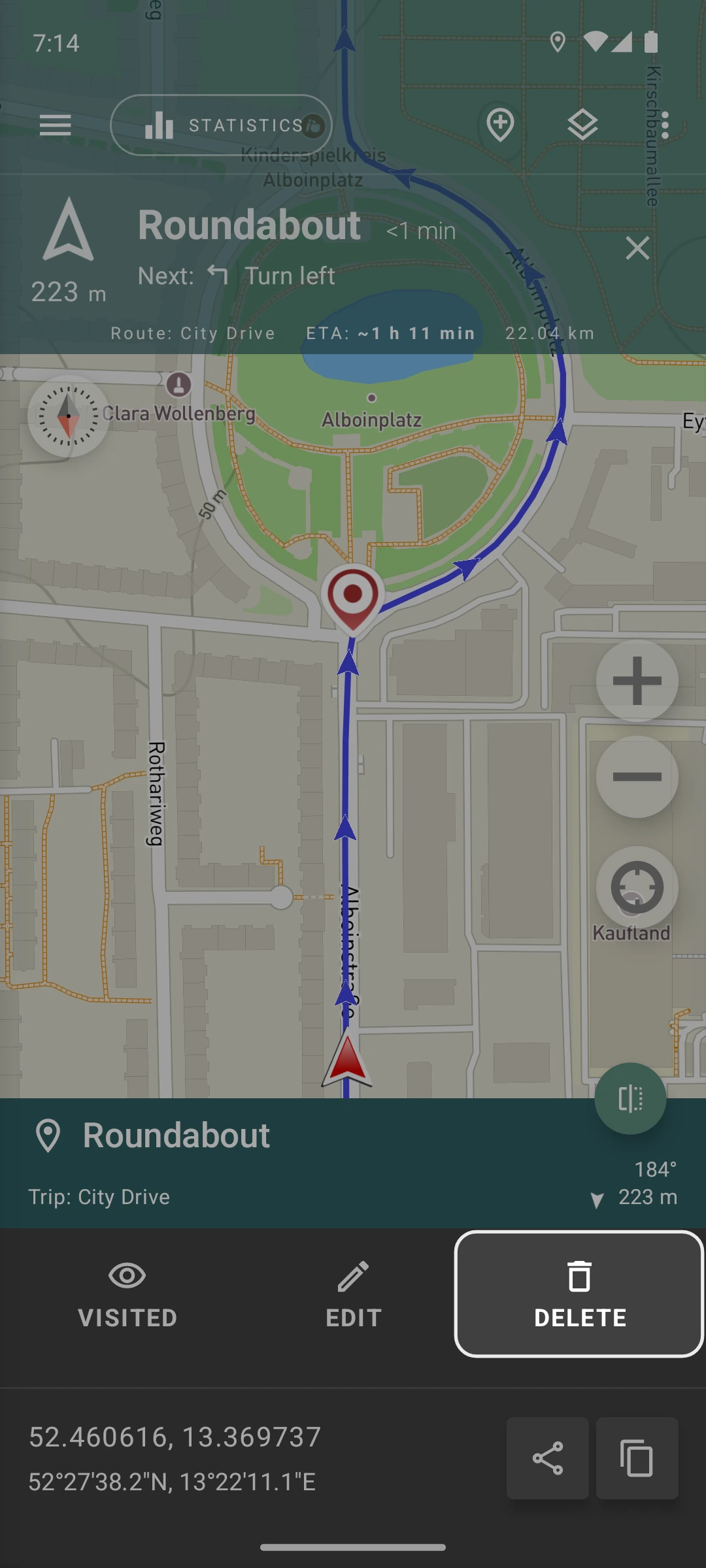
Section titled “Delete a maneuver”If you believe that Geo Tracker has generated an unnecessary maneuver, you can delete the maneuver. To do this, you can remove the marker:
- Select the maneuver marker that is unnecessary,
- Tap the “Delete” button.
In this case, this marker will no longer be used in route guidance.
Alternatively, you can keep the marker but remove the maneuver:
- Select the required navigation marker,
- Delete the maneuver parameter.
In this case, the marker will still be used in navigation but will not be displayed as a maneuver.
Non-navigational markers
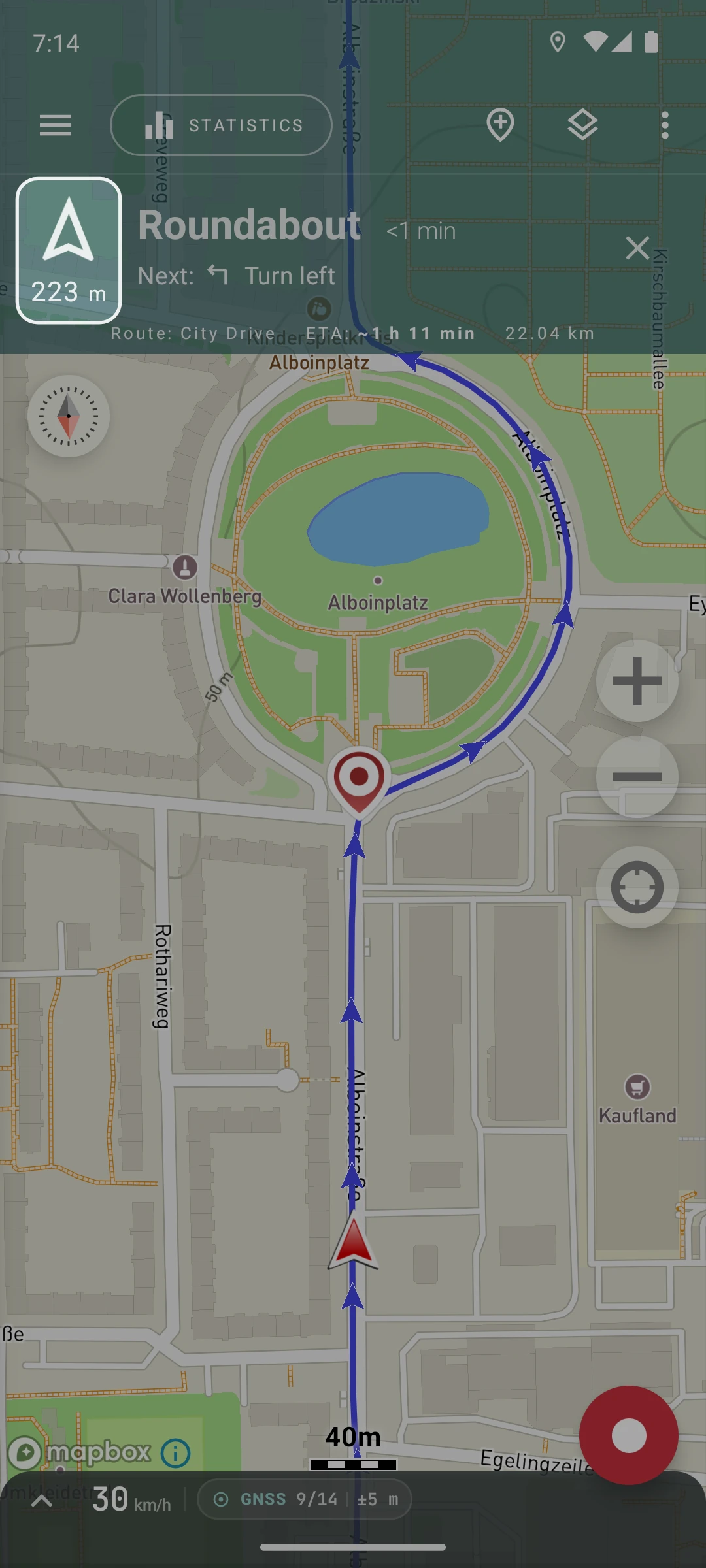
Section titled “Non-navigational markers”If there is a marker (without a maneuver) attached to the track, this non-navigational marker will be considered in navigation and displayed in prompts.
If there is a marker in the track that is outside the track, this marker will not be used in navigation or displayed in prompts.
* A non-navigational marker is a regular marker without a specified movement direction (maneuver).
Markers without a track
Section titled “Markers without a track”If there is no track, but only a saved list of markers, navigation will proceed from the nearest point to the next nearest point.
Please note that Geo Tracker cannot recognize streets and roads on the map. Navigation from point to point will be done in a straight line.
Have questions or want to share feedback? E-mail us.